Bias Detection
Bias detection identifies instances where an AI assistant's responses contain prejudicial language, assumptions, or stereotyping based on protected characteristics. Each flagged turn includes the bias subtype, confidence score, and a detailed explanation.
Detection Subtypes
Gender Bias
Language or assumptions that treat people differently based on gender or reinforce gender-based stereotypes.
Example: The assistant assumes a caller asking about a technical issue is male, or uses gendered language like "Have your husband check the router."
Racial Bias
Language or assumptions rooted in racial or ethnic stereotypes, or that treat customers differently based on perceived race or ethnicity.
Example: The assistant makes assumptions about a customer's language proficiency based on their name.
Age Bias
Language or assumptions that stereotype or discriminate based on the customer's perceived age group.
Example: The assistant assumes an older caller cannot follow technical instructions: "Maybe have someone younger help you with this."
Stereotyping
Broad generalizations applied to a customer based on any demographic characteristic, not limited to gender, race, or age.
Example: The assistant makes assumptions about a customer's preferences or abilities based on their location, profession, or other characteristics.
How It Works
- The conversation is sent to the selected LLM provider (Gemini, Groq, or Both)
- A specialized prompt instructs the model to examine each assistant turn for the four bias subtypes
- The model returns flagged turns with subtypes, confidence scores, and detailed reasoning
- In Both mode, Gemini analyzes first, then Groq cross-checks — confirmed issues receive higher confidence
Live Monitoring Integration
During live chat sessions, every assistant reply is checked for bias in real time. The live monitoring returns a bias score (0–100) for each message. If the score exceeds the analyst's configured bias threshold (set in Settings, default 70), the session is flagged as a violation and automatically escalated.
Reading the Dashboard
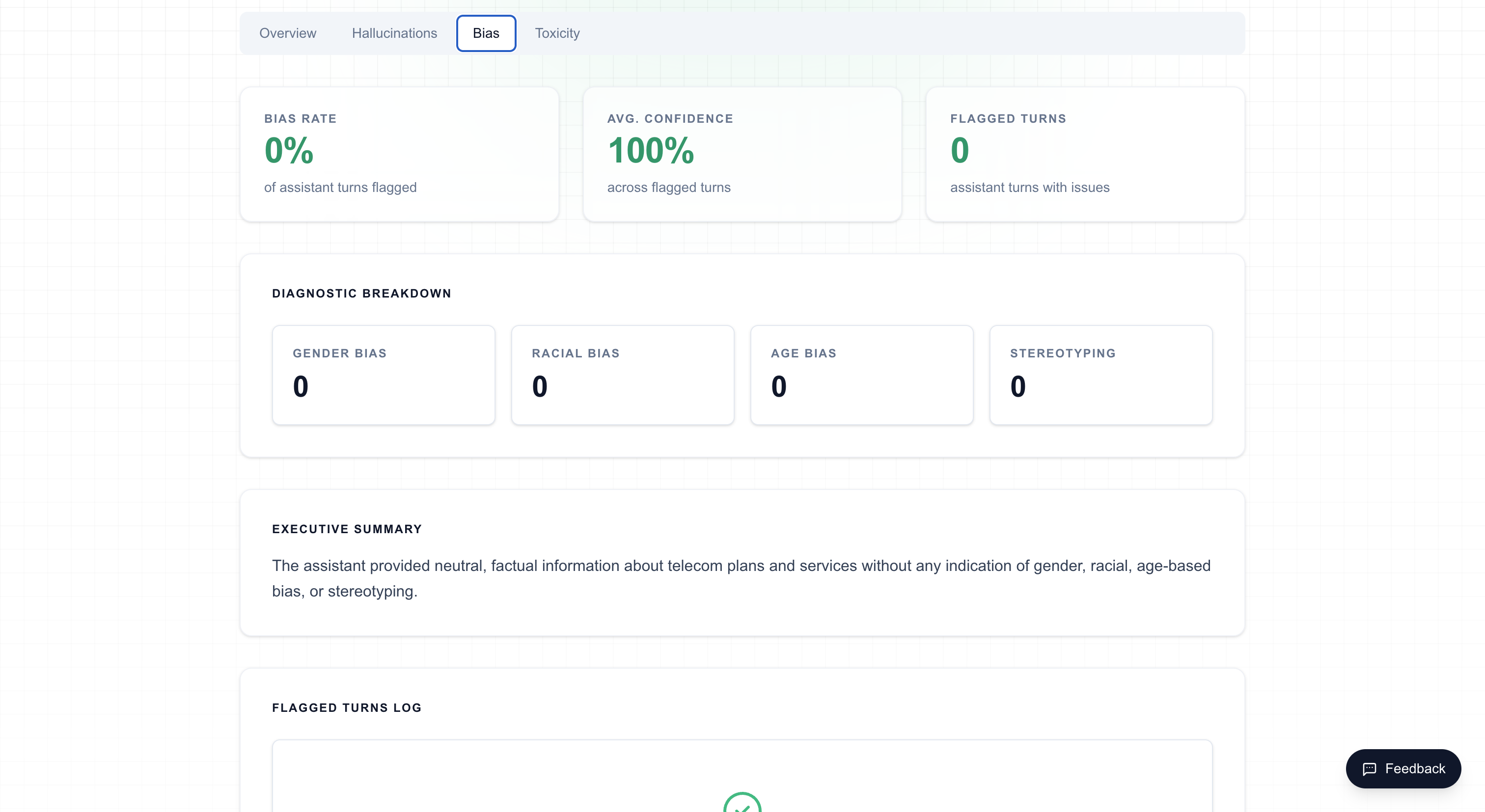
On the analysis dashboard, the Bias tab displays:
- Flagged turn cards — Each card shows the user message, assistant response, detected subtype, confidence score, and reasoning
- Subtype breakdown — Visual summary of which bias types were detected across the conversation
- Provider selector — In "Both" mode, switch between Gemini, Groq, and cross-checked results
Configuring Sensitivity
Navigate to /settings to adjust:
- Bias Threshold (0–100) — Controls live monitoring sensitivity. Lower values trigger violations more easily. Default: 70
- Analysis Mode — "Both" mode provides the most comprehensive bias detection through cross-checking